
Multi-Network SIMs Built for Critical Infrastructure
Ensure maximum uptime and remote visibility with SIMs that connect to the strongest signal — managed end to end by SafeLine’s expert team. Read moreBook a demo
Full visibilty with. SIM management portal
Monitor data, voice, and SMS usage in real time. Set alerts, access reports, and stay in control across all your connected devices.

Dedicated Technical Support
Our in-house SIM experts support you from activation to advanced troubleshooting. Fast, knowledgeable, and always available.

Seamless Multi-Network coverage
SafeLine SIMs automatically connect to the strongest signal available — ensuring maximum uptime without manual switching.

Future-Proof & EN81-28 Ready
All SIMs integrate seamlessly with Orion for 3-day test calls and regulatory compliance — no extra hardware required.
Connectivity, proven in the field
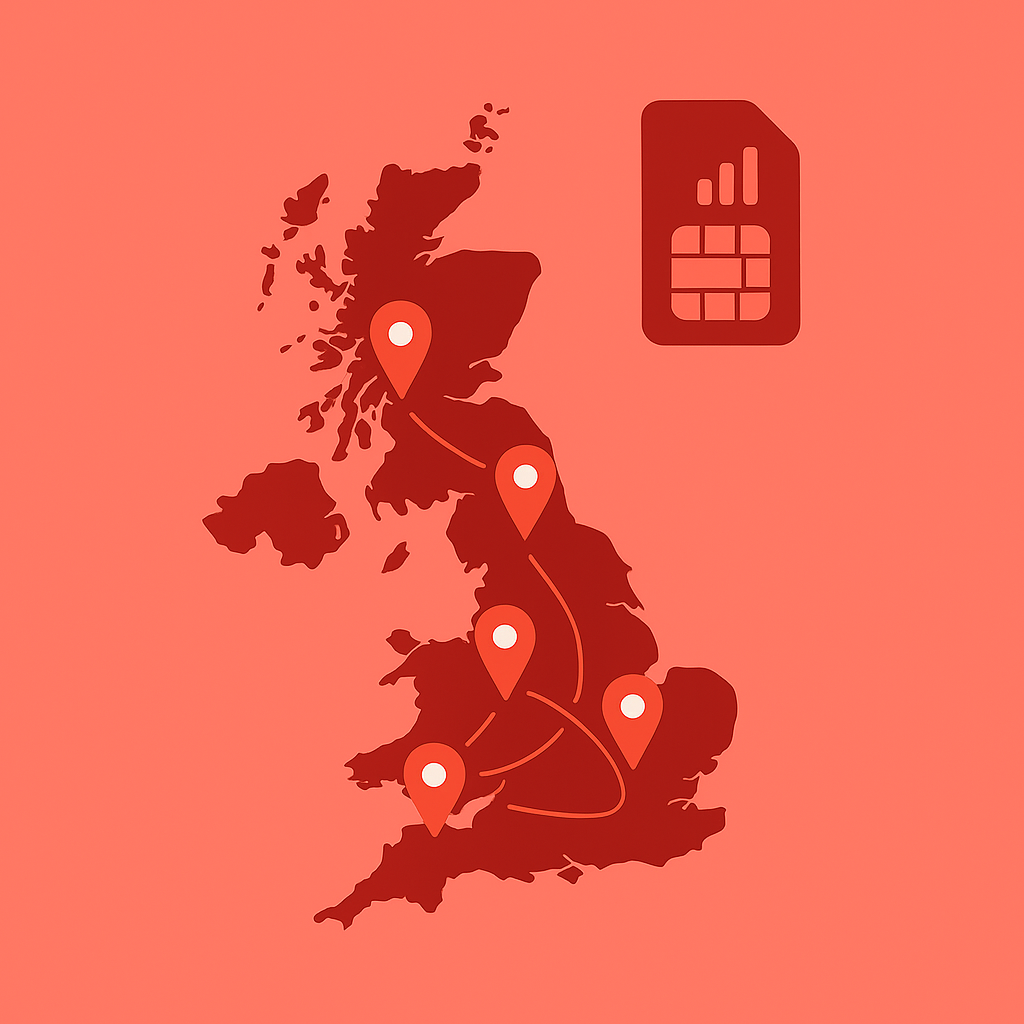
Active SIMs in use across the UK
Whether you’re powering lift emergency lines, IoT systems or critical infrastructure, SafeLine’s fully managed SIM solutions ensure unmatched reliability, real-time visibility, and seamless multi-network coverage.
With over 30,000 active SIMs in use across the UK, we help future-proof your systems with secure, scalable connectivity — built for smart, connected buildings.
Key features
SafeLine SIMs are designed for mission-critical connectivity in smart building environments. With multi-network coverage, real-time monitoring, and full management support, you get:
-
Multi-network roaming – always connects to the strongest signal
-
Fully managed lifecycle – from activation to data reporting
-
Real-time SIM Management Portal – track usage across all devices
-
Seamless UK-wide installation – compatible with lifts and beyond
-
Dedicated SIM team – expert support when and where you need it
Whether you’re powering emergency communication, remote monitoring or IoT systems, SafeLine ensures your infrastructure stays connected — securely and reliably.
Ideal for facility managers — providing complete transparency and control over your connected assets.
Prepare for the PSTN Switch-Off
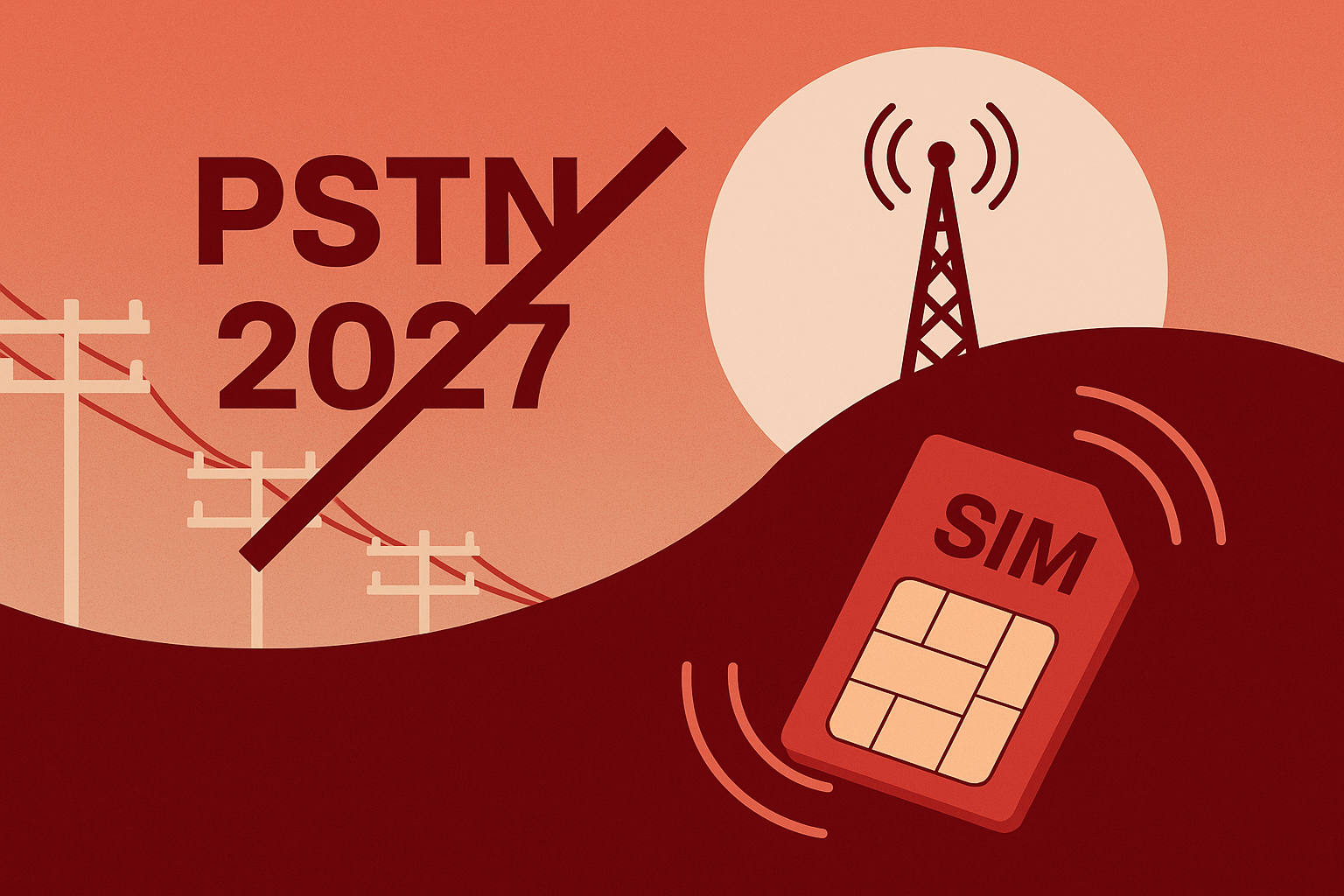
The UK’s Public Switched Telephone Network (PSTN) is being phased out by 2027, putting legacy autodiallers and landline-dependent systems at risk. SafeLine’s 4G VoLTE SIM solutions offer a future-proof alternative — ensuring voice communication over modern mobile networks without relying on outdated infrastructure.
By upgrading now, you secure compliance, extend equipment lifespan, and avoid service disruptions before the switch-off deadline.
Ensure EN81-28 Compliance with Free 3-Day Testing – Powered by Orion Cloud
Stay one step ahead of compliance requirements with SafeLine Orion. Our cloud-based platform enables automated 3-day test calls for lift emergency telephones — ensuring reliable functionality and full alignment with EN81-28 standards.
Key Features
-
Automatic test calls every 3 days
-
All call activity logged and monitored in the Orion Cloud
-
Instant alerts for test-call failures
-
Works with all emergency telephones
-
For full EN81-28 compliance, a SafeLine telephone is required
No Hardware. No Hassle.
The Orion system is fully cloud-based — eliminating the need for additional hardware or complex setup. Perfect for small to mid-sized installations where cost-efficiency and speed are key.
Cost Overview
-
Free 3-day testing for all SafeLine SIM users
-
An optional full compliance setup is available for a one-time unit fee
To activate the 3-day test feature. Please email office@safeline-group.uk with the lift ID, the SIM card number, and the full site address.
Book a test
Case Study
Scalable SIM Deployment for a National Retail Chain, UK
In collaboration with one of the UK’s leading lift service providers, SafeLine successfully delivered and installed over 145 MultiNetwork 4G VoLTE SIMs across multiple sites for a nationwide retailer (client under NDA).
With tight timelines and compliance requirements in focus, SafeLine ensured a smooth rollout by offering fast-track activation, robust multi-network coverage, and dedicated support at every stage.
“SafeLine helped us meet compliance quickly and supported us throughout the entire deployment. Their responsiveness and adaptability made a potentially complex project run seamlessly.”
MultiNetwork 4G VoLTE SIMs installation
System uptime achieved across all sites post-deployment
%
Compliance issues flagged in post-installation audit

The benefits
Maximum Reliability
Our Multi-Network SIM cards automatically connect to the strongest available signal, ensuring uninterrupted connectivity in even the most complex building environments. Ideal for mission-critical systems that must operate 24/7.
Full Visibility & Control
The SIM Management Portal provides real-time insights into usage, status, alerts, and performance across all connected assets. Facility managers gain complete transparency from one central dashboard.
Scalable for Entire Smart Buildings
Whether you manage two devices or two thousand, SafeLine SIM solutions scale seamlessly across portfolios, campuses, industrial sites, and national deployments.
Simplified Installation & Operations
UK-manufactured hardware and pre-configured communication gateways enable fast, hassle-free installation. Our dedicated SIM Team handles activation, monitoring, troubleshooting, and account administration.
Cost-Effective Operation
Automated 3-day test calls via SafeLine Orion require no additional hardware — reducing installation costs and maintenance time. Test calls are free on SafeLine SIMs.
Future-Proofed Connectivity
4G VoLTE technology guarantees system functionality long after the UK PSTN shutdown in 2027. This ensures superior voice quality, improved coverage, and extended device lifespan.
Extensive Use Across Industries
SafeLine SIMs aren’t just for lifts — they power CCTV, HVAC, fire systems, lighting, access control, wind turbines, UPS systems, medical devices, vehicles, vessels, PCs, routers, vending machines and much more.
Capabilities & Technical Specifications
SIM Types
Multi-Network or Single Network
Network Roaming
Automatic connection to the strongest UK network
Contract Options
12, 24, 36, 48, or 60 months
Supported Services
IoT, M2M, voice, data, and SMS
Compatible Systems
Lifts, CCTV, HVAC, fire safety, access control, industrial systems, medical equipment, and more
SIM Management Portal
-
Real-time data, voice, and SMS usage monitoring
-
Full SIM fleet visibility
-
Activation and deactivation controls
-
Customisable reminders and usage alerts
-
Usage reports and Excel downloads (on request)
-
Full lifecycle management by SafeLine’s SIM Team
Communication Gateways & Hardware
-
Manufacturing: Designed and built in the UK
-
Installation: Plug-and-play with rapid deployment
-
Compatibility: Fully compatible with SafeLine hardware and most third-party systems
-
Configuration: Customisable communication gateways tailored to smart building environments
4G VoLTE Technology
Voice over LTE: Voice calls made over the 4G data channel
SafeLine Orion – 3-Day Test Calling (EN81-28)
Functionality:
-
Automated test calls every 3 days
-
Call activity logged and monitored in the Orion Cloud
-
Instant alerts for test-call failures
-
Compatible with all emergency telephones
-
Full EN81-28 compliance when used with a SafeLine telephone
FAQ Lift emergency telephones
Do we have to use SafeLine SIM cards to run SafeLine Orion?
No. Orion works with other SIM providers as well. However, many lift companies choose SafeLine SIMs because they’re optimised for critical environments, fully managed by our team and tightly integrated with Orion and our test-call features.
What’s the advantage of multi-network SIMs for lifts?
With multi-network SIMs, the card can connect to more than one mobile operator and automatically use the strongest available signal. That’s especially important in lift shafts and machine rooms where coverage can be weak or unstable.
Can we manage all SIM cards in one place?
Yes. With the SafeLine SIM Management Portal you can see status, data and usage across all your SIMs, receive alerts and handle activations and changes – all from a single interface.
How do SafeLine SIMs support EN81-28 and emergency calls?
SafeLine SIMs are designed to work with SafeLine emergency phones and Orion to ensure reliable emergency communication, automated 3-day test calls, and clear logging of all activity in the cloud.
What happens with our connectivity when landlines (PSTN) are phased out?
SafeLine SIMs are 4G/VoLTE-ready and built for the transition away from traditional landlines. They help you keep emergency communication and monitoring services running as telecom networks modernise.
Is this only for lifts, or can we use the SIMs for other systems too?
Many customers also use SafeLine SIM cards for related critical systems such as fire alarms, access control, CCTV, and building IoT devices – wherever uptime and secure connectivity matter.
I am getting a bad reception for GSM with the lift telephone, but on my mobile phone the signal is fine. Why?
Try switching your mobile phone from 4G to only 2G and see if there’s still a difference. If you’re getting bad signals on your mobile phone after switching, you might need a 4G VoLTE board. Contact technical support for more information.
Why does the line hang up every time I try dialing?
Check what identification protocol is being used when calling an emergency operator. Please see the lift telephone’s manual to change this setting.
How do I get supply voltage from SL6 to GL1?
Use +D1 (12 VDC) on the SL6 as the supply and connect it to –D5 on the GL1.
D6 is reserved for the emergency bell output and is not intended as a supply for the GL1.
The telephone won’t connect me through, why?
If you’re using a GSM unit and have a prepaid SIM card, check if there are enough funds on the card. If the unit does not use a prepaid SIM card, call your operator to make sure that speech is activated on the SIM card.
Why can’t I switch from GSM to PSTN?
Ensure that “GSM Interface Disabled” is turned off in the Lynx app.
If it is already enabled, check GSM signal, SIM card and wiring to the interface, and restart the unit if needed.
Why doesn’t the alarm button work from input 1 or 2 on the SL6?
Check the configuration of input 1 or 2. Input 1 is pre-set as alarm button and input is pre-set for fire alarm.
The pictogram LED’s are flashing quickly and simultaneously – why?
– The address switch is either set to an invalid number: 0, 7, 8 or 9 (valid numbers are 1–6), or the address switch setting has been changed during operation.
– The error can also be caused by a communication or wiring fault, such as a loose or broken wire.
– Change the address switch to a valid number and check the wiring between the units. If the problem remains, refer to the installation manual for further troubleshooting.
Why does the telephone beep every 5 seconds?
This is to notify passengers of an ongoing call (anti-eavesdropping), a normal procedure.
There is GSM noise heard when calling – why?
This is probably due to the antenna’s positioning. Change the antenna position during a call until you find the optimal position. Do not install the antenna near the main unit or close to the cabling.
FAQ LYNX
Why does it say I need a password to configure through LYNX?
When you power up a unit, you have 10 minutes to start configuration in the LYNX app without a password. After this security timeout, the unit will request a BLE password. If you have passed this limit, simply restart the unit and begin configuration within 10 minutes.
On software versions 6.2X and above, the option to set a new BLE password is no longer shown in the app, but any previously set password is still required. If the password is unknown, the unit must be restarted or reset according to the manual.
Where can I find the SafeLine LYNX app?
You can find it in the Apple App Store and in Google Play by searching “SafeLine LYNX”.
I only have the quick guide, but I need the full manual. Where do I find it?
You’ll find manuals under the respective product page under “product files” or directly in the SafeLine LYNX app under each product.
Where can I find software for products?
You’ll find most software for products under the respective product page or on the Support page. Contact your local technical support for more information